
Sending files with LiquidFiles
LiquidFiles
LiquidFiles is a system that can securely send and receive files (PDF, XLXS, DOCX, etc). It is HIPPA and FERPA compliant.
Accessing LiquidFiles
To access the YCSD LiquidFiles system, navigate to secureshare.ycschools.org, and sign in with your standard YCSD email and password.
Sending Files
You will first be greeted by the home page. Here you can send files.
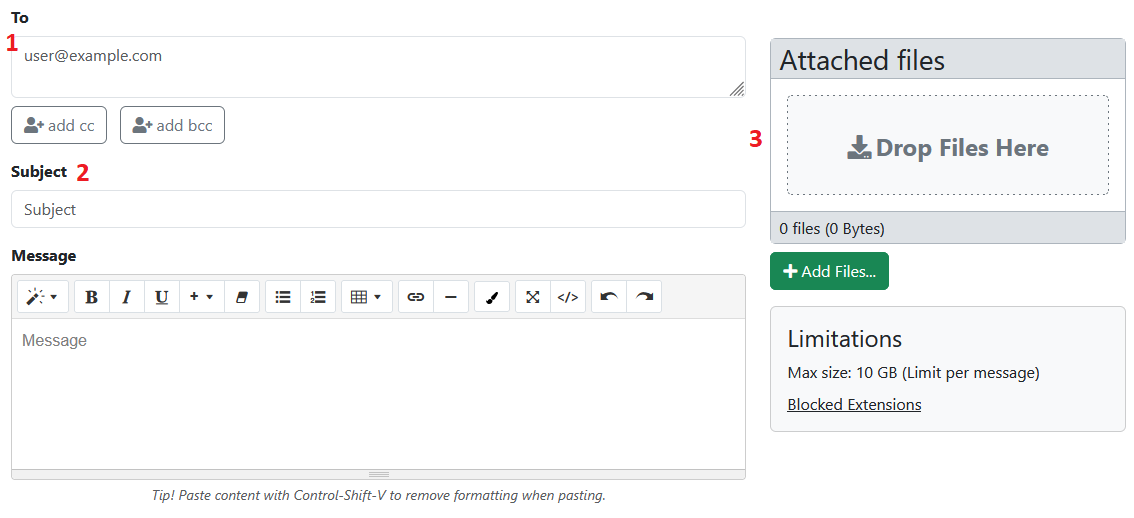
You can enter as many recipients as you need (hundreds...). Click on the CC and BCC button if you want to add CC or BCC addresses as well.
Enter a subject line and a message just as you would in an email.
To add files you can either drop files in the "Drop Files Here" section, add files using the "Add Files" button or select files you've already sent, so you don't have to re-upload a previous IEP or transcript.
The user who is receiving the files will need to authenticate via a secure token sent to their email address. This will ensure that only the designated recipient will be able to download the file.
Receiving Files
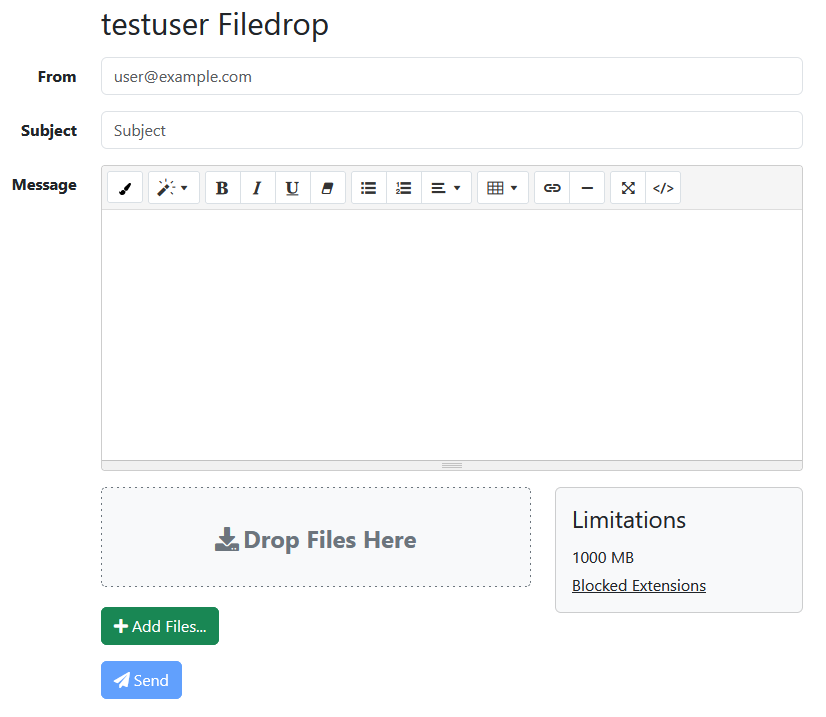
External senders (other school districts, ESDs, families) can send files to you securely by uploading them to your personal Filedrop. Below is what an external sender would view.
Your filedrop URL is secureshare.ycschools.org/filedrop/<ycschools.org email address>. For example, the filedrop for testuser@ycschools.org is secureshare.ycschools.org/filedrop/testuser@ycschools.org.
Was this article helpful?
That’s Great!
Thank you for your feedback
Sorry! We couldn't be helpful
Thank you for your feedback
Feedback sent
We appreciate your effort and will try to fix the article